
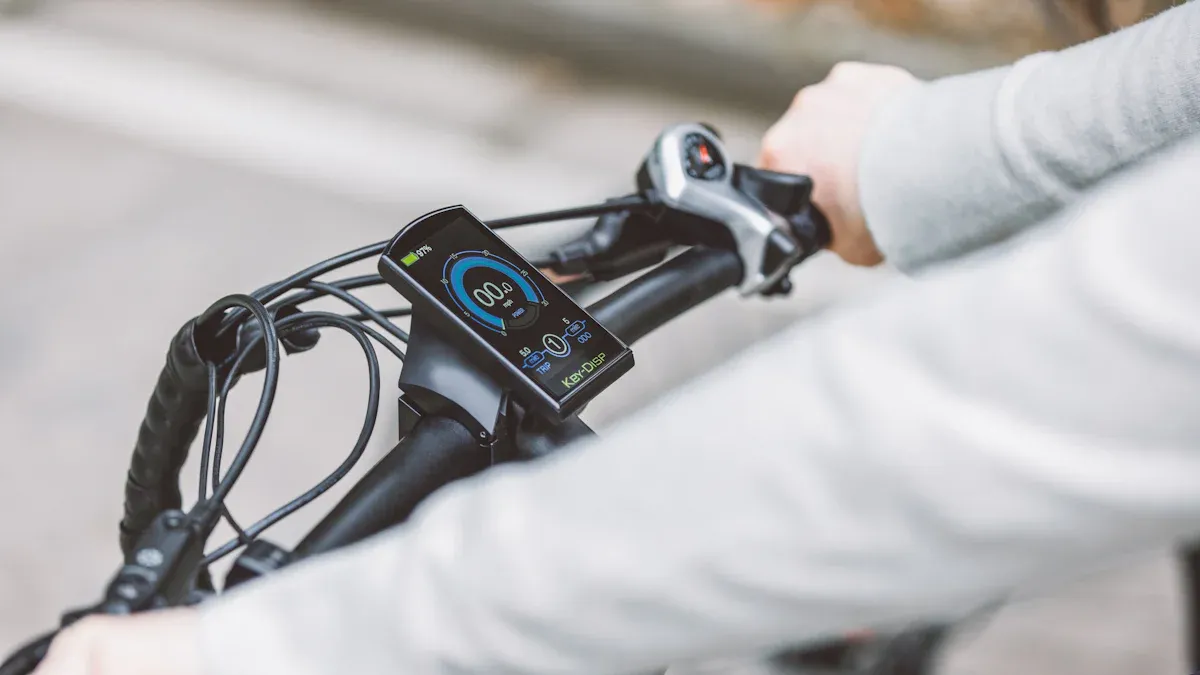
Looking to get the most out of your Bosch e-bike display? With the right settings and navigation, you can not only access precise ride statistics, but also customize the display to suit your needs. The eBike Flow app lets you specifically select key metrics like cadence, range, or ride modes and set the order of the screens. Professionals like Nathalie Schneitter use these features to boost performance and control. Try out different settings yourself and discover how personalized views enhance your riding experience.
Key Takeaways
Bosch e-bike displays come in various models with individual benefits, which you can choose to match your riding style.
You control essential functions like navigation, ride modes, and fitness data directly from the handlebar or via the eBike Flow app.
With the app, you can easily adjust the display, language, and the order of the screens to personalize your riding experience.
The combination of the display and app provides navigation, fitness tracking, theft protection, and regular software updates.
Regular maintenance and simple troubleshooting ensure reliable and safe use of your Bosch e-bike display.
Bosch e-bike display: Overview
Models and Differences
You will find various models for your Bosch e-bike display. Each model brings its own set of advantages.
Kiox 500: This display is 40% larger than the Kiox 300. You get a better overview and alert tones, for example, for navigation.
Kiox 300: Compact and modern. It shows you plenty of data, but in a smaller space.
Purion 200: Minimalistic and easy to use. The color display is clear and can be expanded with other displays or the SmartphoneGrip.
Nyon: This model offers a large touch display and many smart features.
From 2024, Bosch is focusing on the Smart System. You benefit from new motors and batteries that are compatible with the current displays.
Tip: Think about which Bosch e-bike display fits your riding style. Larger displays like the Kiox 500 are great for navigation and fitness data. Minimalist models like the Purion 200 are ideal if you only want to see the essentials.
Main Features
With a Bosch e-bike display, you control many important functions directly from your handlebar.
The dynamic display adapts to your riding situation. For example, you will see different values when climbing a hill compared to riding on flat terrain.
You can read data such as power output, cadence, speed, elevation gain, and range.
The elevation profile shows you how many meters you have already climbed. It is displayed and saved during navigation and spontaneous rides.
The quick menu helps you change settings directly on the Bosch e-bike display.
Use Bluetooth to connect heart rate monitors or smartwatches. You can view the values while riding.
Some models offer alert tones to assist you with navigation.
With these features, you can get the most out of your Bosch e-bike display. You control your e-bike safely and always have all the important information in view.
Navigation and Operation
Menu Navigation
With your Bosch e-bike display, you control all key functions directly from your handlebar. The menu structure remains clear across all models. You can find the most important data such as speed, battery level, remaining range, and route information on the home screen.
Press the menu button to switch between screens. Kiox and Nyon show you additional fitness data, elevation, and activity analysis. Intuvia offers a clear display of ride data and even provides shift recommendations.
The menu structure is logical. You can access settings, navigation, or fitness features in just a few clicks.
Tip: Use the shortcuts to quickly switch between the most important screens while riding.
Buttons and Touch
You operate your Bosch e-bike display either via buttons or a touchscreen.
Kiox and Purion 200: Here, you control everything using easily accessible buttons on the handlebar. The operation works reliably even with gloves on.
Nyon: This model offers a large touchscreen. You simply swipe across the display to open menus or change settings. The side buttons help you keep everything under control even in the rain or while wearing gloves.
Intuvia: The large buttons are easy to find. You can switch between displays quickly without taking your eyes off the road.
The displays react quickly and show you the desired information immediately. The color displays are also easy to read in sunlight.
Note: The combination of buttons and touch ensures maximum control – in any weather.
Starting Navigation
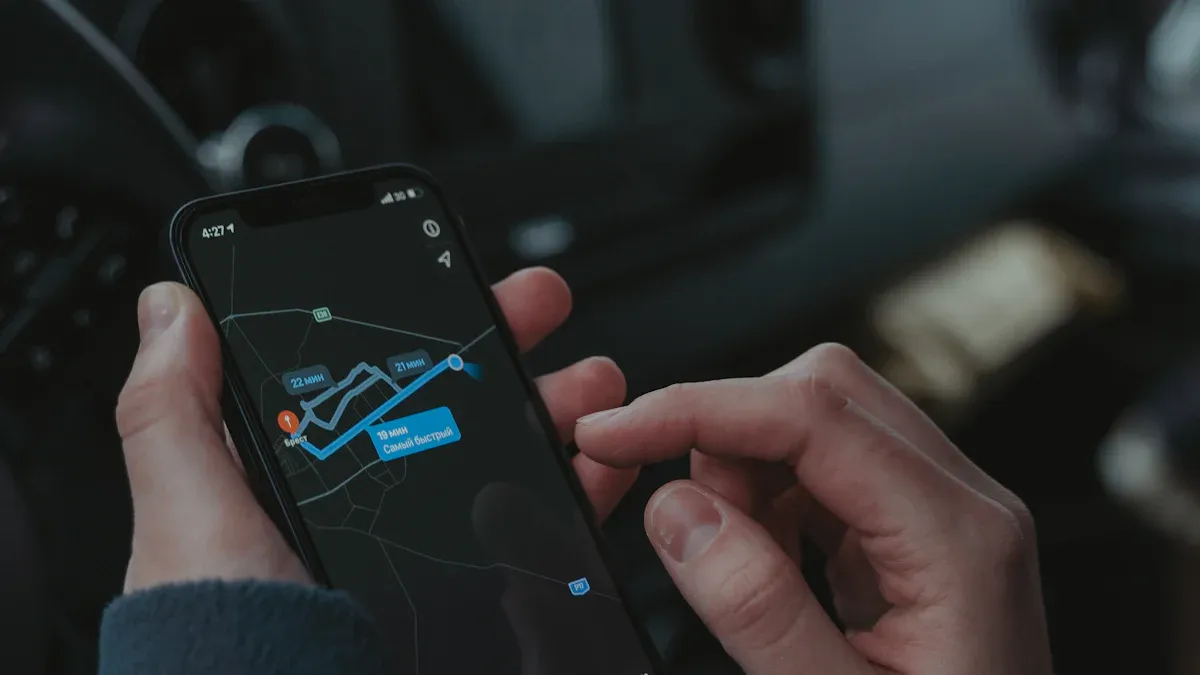
You start navigation directly on the Bosch e-bike display or via the eBike Flow app.
Open the navigation menu on your display.
Select your destination or plan the route in the app.
Sync the route with your display.
While riding, the display provides clear turn-by-turn directions and route information. You can always see how far it is to your destination and how much battery you have left.
Kiox offers minimalist navigation with clear symbols. Nyon synchronizes your routes and shows detailed maps. Purion 200 supports you with alert tones and an intelligent walk assistance. Intuvia displays the most important ride data and helps you choose the right gear.
The displays automatically record and save your tour and fitness data. Software updates and synchronization with the eBike Flow app keep your data up to date.
Advantage: You not only get navigation cues but also status displays like theft protection, walk assistance, or Hill Hold directly on your display.
Bosch e-bike display: Adjusting Settings
Configuring Ride Modes
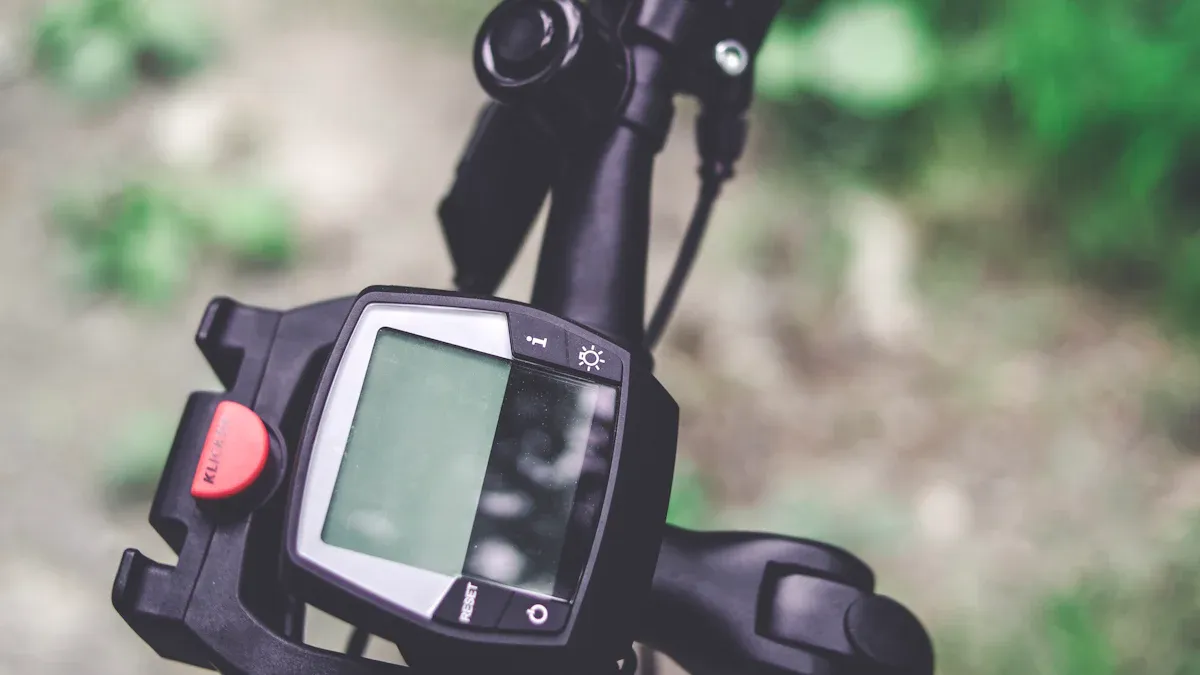
You can easily customize the ride modes of your Bosch e-bike display. Different ride modes help you improve the riding experience and increase your range. Many users try out different modes to find the one that fits their route best.
Use the Bosch eBike Flow app (version 1.16.8 or higher) or the display itself to set the ride modes. Follow these steps:
Open the eBike Flow app on your smartphone.
Connect your e-bike to the app.
Select "Ride Modes" in the menu.
Adjust the support and riding characteristics to your liking.
Save the settings and sync them with your Bosch e-bike display.
Tip: Test different settings on your favorite route. This way, you will find out which mode suits you best.
If you want to reset the settings, you will find an option for factory settings in the app. This helps if you want to start fresh.
Display and Language
You can customize the display and language of your Bosch e-bike display individually. Many riders appreciate being able to see the most important information at a glance.
In the menu, you will find the "Display" option. Here, you can adjust the brightness so that you can read the display well in any weather. You can also customize the language. Simply choose your preferred language from the list.
Note: The correct language setting ensures that you understand all hints and menus quickly.
Some displays offer additional adjustments. For example, you can choose the units of measurement (kilometers or miles). This makes using the bike abroad easier.
Order of Screens
Use the eBike Flow app to arrange the order and content of the screens according to your preferences. Especially with the Kiox 300, Kiox 500, and Purion 200, you decide which data you want to see first.
Many users report that this helps them keep the information they care about most in view. You can add, remove, or reorder screens. This creates a personalized riding experience.
Here is how to do it:
Open the eBike Flow app.
Select your connected Bosch e-bike display.
Go to the "Customize Screens" area.
Drag the desired displays into the correct order.
Save your selection.
Tip: Place the most important values like speed, battery level, or range at the front. This way, you always have them in view.
The ability to determine the order of the screens yourself gives you maximum control over your riding experience. You decide what counts for you.
App Integration
Connecting the eBike Flow App
Connecting your Bosch e-bike display to the eBike Flow app is simple. The app helps you control your e-bike and change settings. Follow these steps to establish the connection:
Download the eBike Flow app from the App Store or Google Play Store.
Enable Bluetooth on your smartphone.
Turn on your e-bike.
Open the app and follow the on-screen instructions.
Select your e-bike from the list of available devices.
Confirm the connection.
Tip: Keep your smartphone near your e-bike during the connection process. This makes pairing faster.
After connecting, you will see all important data directly in the app. You can change settings, save ride data, and install updates. The app also shows you the battery level and range.
Advanced Features
The eBike Flow app unlocks many additional features. You can make your riding experience even more individual. Here are some highlights:
Navigation: Plan your route in the app. Transfer it directly to your Bosch e-bike display. You get turn-by-turn directions and see the route on the display.
Fitness Tracking: The app records your rides. You can see how many kilometers you have ridden and how many calories you have burned.
Theft Protection: Activate the eBike Lock. Your motor will only start when your smartphone is nearby.
Software Updates: Install updates directly via the app. Your system always stays current.
Individual Settings: Adjust ride modes, display, and the order of the screens.
Feature |
Your Benefit |
|---|---|
Navigation |
Always on the right path |
Fitness Tracking |
Overview of your performance |
Theft Protection |
More security |
Updates |
Use new features immediately |
Personalization |
Everything to your taste |
Note: With the app, you have full control over your e-bike. You decide what your display looks like and which features you use.
Tips & Troubleshooting
Fitness and Navigation Features
With your Bosch e-bike display, you can optimally combine fitness and navigation. Many users report that displaying training data and route guidance simultaneously makes them ride with more motivation and helps them reach their goals better. The eBike Flow app supports you in tracking your performance and planning your tours specifically.
Feature |
Description |
|---|---|
Training Data |
Monitor heart rate, calorie burn, and power output in real-time for your fitness progress. |
Navigation |
Plan your route directly in the app and select different route types for your training. |
Customization |
Adjust the display so that you see training and navigation data according to your preferences. |
Advanced Navigation |
Use detailed maps with side roads for better orientation on the go. |
Live battery monitoring helps you plan longer tours better. After the ride, you receive statistics on ride modes and power distribution. This way, you can see how to improve yourself. Bosch even uses AI features like "Range Control". This function analyzes your riding style and the route profile. You get accurate predictions of the battery level at your destination and can set a minimum value. Advanced navigation shows you side roads and calculates the arrival time. This makes every ride safer and more personal.
Tip: Use the personalization options. This way, you always have the most important data in view and can control your training precisely.
Solving Common Problems
Even with modern displays, problems can occur. Many can be fixed with simple steps. Here are the most common sources of error and appropriate solutions:
Battery shows malfunctions (e.g., low voltage or loose contacts)
Cable connections are disturbed (loose contacts or damaged plugs)
The display overheats in direct sunlight
The motor does not react or cuts out completely
Smart features like Bluetooth do not connect reliably
Solutions and Recommendations:
Protect your display from moisture and heat, for example with a cover ☀️
Check and clean the contacts and cable connections regularly
Install firmware updates to avoid software bugs
Seek professional help for complex problems
Note: Many of these tips come from official support data and user surveys. With regular maintenance and care, your Bosch eBike display will remain reliable and high-performing.
With your Bosch eBike display, you can purposefully control comfort, safety, and training. The following overview helps you choose the right model for your riding style:
Model |
Main Features |
Best for? |
|---|---|---|
Purion |
Minimalist, clear |
Purists, simple |
Intuvia |
Intuitive, large font |
Comfort-oriented |
Kiox |
Fitness data, app connection |
Sporty, ambitious |
Nyon |
Touch, navigation, analysis |
Tech-savvy, connected |
Use smart features like heart rate display and elevation profiles. Customize the display to your liking. Try out these tips and look forward to a more personal riding experience. If you have questions, the Bosch eBike Flow app or Bosch Support will be happy to help.
FAQ
How can I reset my Bosch eBike display to factory settings?
Open the menu on your display or in the eBike Flow app. There you will find the "Factory settings" option. Confirm the process. The display will reset all settings. Your personal data remains saved in the app.
What do I do if my display won't start?
First, check the battery level of your eBike. Check the cable connections on the display. Press and hold the power button for several seconds. If the display still does not work, contact Bosch Support.
Can I remove my display while riding?
Yes, you can remove many Bosch displays like Kiox or Nyon with a simple movement. This protects against theft. However, do not leave the display loose while riding. A secure fit ensures safety.
How do I update my display's software?
Connect your eBike to the eBike Flow app. The app will show you available updates. Start the update directly via your smartphone. Follow the instructions on the screen. The update only takes a few minutes.
What data can I have displayed individually on the screen?
You choose which values you want to see in the eBike Flow app. These include speed, range, cadence, altitude, and more. Arrange the displays according to your preferences. This way, you always have the most important information in view.