
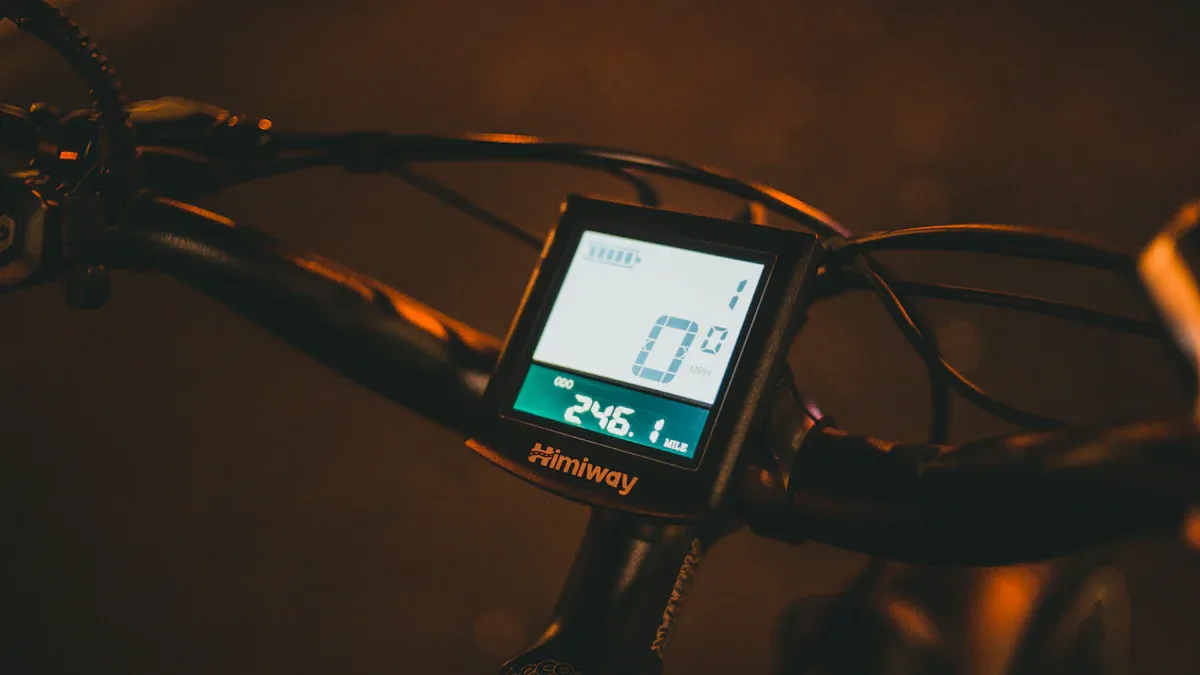
A customized riding experience begins with the advanced settings of your Bosch eBike display. These allow you to optimally tailor your eBike to your needs.
The "Power Distribution" screen provides insights into the average rider's own performance compared to the average output of the drive unit.
After the ride, it shows the proportion of each riding mode used, including Off mode.
By adjusting your display, you benefit from more efficiency, comfort, and safety. The Bosch eBike display becomes an indispensable companion that not only provides you with data but also optimizes your riding style.
Key Insights
Change the order of information on the Bosch display. This allows you to see important data more quickly.
Use the 'Advanced Navigation' premium feature. This helps you plan routes more accurately and find your way better.
Try out different riding modes. This will improve your riding experience and help you ride longer.
Overview of Bosch eBike Displays
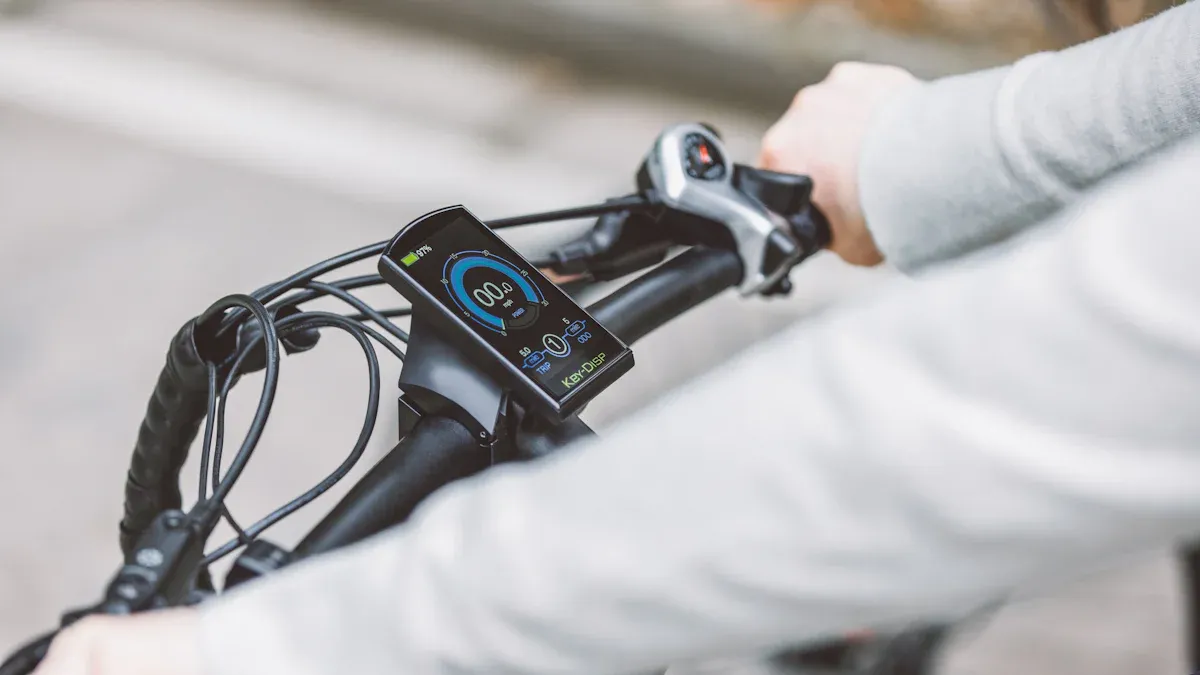
The various display models and their target groups
Bosch offers a wide range of eBike displays tailored to different target groups and application areas. The Purion and Intuvia models are aimed at everyday users who prefer a simple and clear design. For sporty riders, Kiox and Nyon are ideal as they offer advanced features such as training data and navigation.
Display Model |
Target Group |
Application Area |
|---|---|---|
Purion |
Everyday users |
Ideal for daily use |
Intuvia |
Everyday users |
Ideal for daily use |
Kiox |
Sporty riders |
Designed for sporty use |
Nyon |
Sporty riders |
Designed for sporty use |
Basic functions of the displays
All Bosch eBike displays provide essential information such as speed and battery capacity. They are splash-proof and can be operated conveniently from the handlebar. The Intuvia display supports you with gear-shift recommendations and a walk assistance feature. Kiox is particularly robust and suitable for mountain bikers, while Nyon is equipped with a touchscreen and an integrated route planner.
Speed and battery capacity are shown on every display.
Intuvia offers a practical gear-shift recommendation and walk assistance.
Kiox is ideal for demanding trails and sporty riders.
Nyon combines navigation and a touchscreen for a modern riding experience.
The smart system uses your smartphone as a display for navigation and music control.
Differences between Intuvia, Kiox, Nyon, and Purion
Bosch eBike displays differ in design and functionality. Intuvia and Purion are simple LCD displays characterized by their clarity. Kiox and Nyon, on the other hand, are smart on-board computers with high-resolution screens and advanced features.
Model |
Category |
Special Features |
|---|---|---|
Intuvia |
Ergonomic operation, separate control unit, compatible with eBike Flow app |
|
Purion |
Simple and clear LCD displays |
Space-saving, combines control unit and display, ideal for E-mountain bikes |
Kiox |
Smart and connected on-board computers |
High-resolution screen, connection to smartphones via eBike Connect app |
Nyon |
Smart and connected on-board computers |
High-resolution color screen, touchscreen, improved user interface |
The variety of Bosch eBike displays shows how well they are tailored to different needs. Regardless of whether you prefer a simple design or advanced features, Bosch offers the right model for you.
Advanced settings via the Bosch eBike Connect App
Connecting the display to the app
Connecting your Bosch eBike display to the Bosch eBike Connect app opens up numerous possibilities for personalizing and optimizing your riding experience. To establish the connection, activate Bluetooth on your smartphone and start the app. Select your display from the list of available devices. Once connected, you can perform wireless software updates and synchronize your ride data.
Date |
Information |
|---|---|
05/24 |
KIOX now works with the eBike Connect app, which enables the connection. |
Future |
The app will be able to record rides with all data captured by the eBike. |
Current |
Wireless software updates are supported, which improves integration. |
Tip: Ensure your display and smartphone have sufficient battery capacity to avoid connection problems.
Adjusting display configuration (e.g., order of screens)
With the Bosch eBike Connect app, you can individually adjust the order of screens on your display. Open the app and navigate to your display settings. Here you can select which information, such as speed, battery level, or navigation data, should be displayed first. This adjustment helps you retrieve the data most important to you quickly and easily.
Note: Adjusting the display configuration is particularly useful for riders who want to focus on specific information, such as training data or navigation prompts.
Using the "Advanced Navigation" premium feature
The "Advanced Navigation" premium feature offers you a more precise and detailed map view. This feature shows not only the planned route but also secondary roads and the entire path network. This makes orientation in unfamiliar areas significantly easier.
Detail |
Description |
|---|---|
Map view |
Users get a more detailed map view showing the entire road and path network. |
Navigation |
The improved display allows for more precise navigation and makes orientation easier in unknown areas. |
Route planning |
Riders can better plan their routes and reach their destination more safely. |
Benefit: With advanced navigation, you can plan your rides more efficiently and discover new routes.
Troubleshooting tips for connection issues
Connection issues between your display and the Bosch eBike Connect app can occasionally occur. Users have reported synchronization delays, especially with third-party apps like Komoot. If tours are not synchronizing, try the following steps:
Disconnect the app from your display and reconnect it.
Reinstall the app to resolve potential software errors.
Check whether the latest version of the app and the display software is installed.
Note: If problems persist, contact Bosch support for further assistance.
Advanced settings directly on the Bosch eBike display
Menu navigation and controls on the display
The menu navigation on the Bosch eBike display is intuitively designed so you can quickly access all important functions. Use the control buttons on the handlebar to navigate through the different menus. The "+" and "-" buttons allow you to switch between options, while the "i" button provides additional information on the displayed data.
For example, if you want to see the current speed and remaining battery capacity, press the "i" button to toggle between the displays. This makes it easy to keep an eye on the most important information while riding.
Tip: Practice menu navigation while stationary before heading out for a ride. This ensures you can master the controls effortlessly during your ride.
Adjusting riding modes and assistance levels
Adjusting riding modes and assistance levels directly on the display allows you to customize your riding experience. Bosch eBike displays offer various modes such as Eco, Tour, Sport, and Turbo. Each mode provides a different level of support from the motor.
The "Power Distribution" data field shows you how much power comes from the motor and how much from you.
A diagram on the display visualizes the usage of riding modes. It shows the ratio between your own effort and motor power.
For instance, if you want to ride longer distances, choose Eco mode. This saves energy and increases range. For steep climbs or sporty rides, Turbo mode is suitable.
Note: Experiment with the different modes to find out which fits your riding style best.
Setting brightness, language, and other options
You can adjust the display brightness to improve readability under different lighting conditions. Navigate to Settings in the menu and select the "Brightness" option. Here you can make the display brighter or darker.
Additionally, you can change the display language. Bosch eBike displays support multiple languages, including German, English, and French. Go to language settings and select your preferred language.
Other options such as the time or units (kilometers or miles) can also be configured directly on the display. These adjustments ensure your display is optimally tailored to your needs.
Tip: Adjust the brightness before starting your ride to avoid distractions.
Resetting to factory settings
If you encounter issues with your Bosch eBike display or wish to sell it, you can reset it to factory settings. The process is quick and simple:
Turn on the Bosch eBike drive system.
Hold the "Reset" and "i" buttons simultaneously until the text "Settings" appears.
Press the "i" button until "Start-up gear" is displayed.
Use the "+" or "-" buttons to set the desired start-up gear.
Save the settings by holding the "Reset" button for approx. 3 seconds.
This process resets all settings to their default values. This is particularly helpful if you want to reconfigure the display.
Note: Back up important data before resetting the display, as all personal settings will be lost.
Tips and tricks for popular Bosch eBike displays
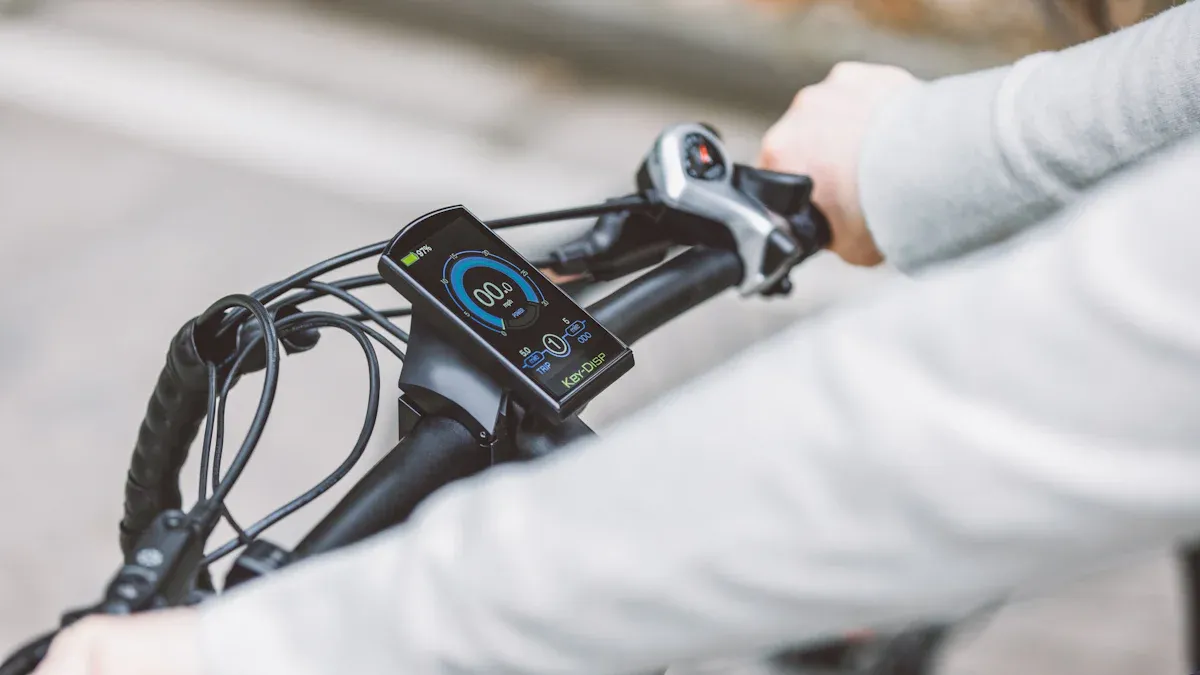
Bosch Intuvia: Practical functions and hidden features
The Bosch Intuvia display offers numerous practical functions that enhance your riding experience. One of the most useful is the Gear-shift recommendation, which shows you when to shift to ride more efficiently. With Smartphone connectivity, you can charge your phone while riding and connect it via Bluetooth.
Function |
Description |
|---|---|
Gear-shift recommendation |
Shows when and in which direction to shift. |
Smartphone connectivity |
Charges the smartphone while riding and connects it via Bluetooth. |
Riding modes
Six modes, including Eco, Tour, Sport, and eMTB.
Walk assistance
Shows the activity of the walk assistance on the display.
Hill Hold function
Prevents rolling backwards on inclines.
Service reminder
Reminders for service appointments.
Readability
Good visibility in both sunlight and darkness.
Light control
Control the light directly from the display.
Software update
Updates via Wi-Fi or mobile network.
Tip: Use the Hill Hold function to keep your eBike safely in place on inclines.
Bosch Kiox: Optimal use of training and fitness functions
The Bosch Kiox display is ideal for athletic riders who want to improve their fitness. It displays precise training data such as heart rate, calorie consumption, and power. You can pair it with a heart rate monitor to track your progress.
Training data: Track your performance in real time.
Robust design: Perfect for mountain bikers and demanding routes.
Navigation: Plan your routes directly via the eBike Connect app.
Note: Synchronize the Kiox display regularly with the app to save and analyze your training data.
Bosch Nyon: Navigation customization and personalization
The Bosch Nyon display offers you extensive customization options. You can customize the navigation, download maps, and choose between three route options: Scenic, MTB, and Fast.
Function |
Description |
|---|---|
Dashboard |
Displays basic riding data. |
Ride |
Speedometer functions for the ride. |
Map & Navigation |
Allows you to download maps and navigate. |
Settings |
Adjustment of display and navigation settings. |
Route options |
Offers 3 different routes: Scenic, MTB, and Fast. |
Tip: Choose the “Scenic” route to discover beautiful landscapes.
Bosch Purion: Focus on simplicity and efficiency
The Bosch Purion display impresses with its minimalist operation. All important information such as speed, range, and charge level can be retrieved at the click of a thumb.
Minimalist design ensures a tidy look on the handlebars.
Illuminated and anti-reflective display improves visibility in sunlight.
Five support modes (Eco, Tour, Tour+, Sport/eMTB, Turbo) provide customized assistance.
Note: Use Eco mode to maximize the range of your eBike.
The advanced settings of Bosch eBike displays offer you more control and comfort. You can individually customize riding modes, navigation, and display screens. This significantly improves your riding experience.
Category |
Percentage |
|---|---|
Manufacturing and materials |
|
Usage (Riding) |
13% |
Transport, packaging, recycling |
8% |
Further information can be found here:
Use these resources to deepen your knowledge and make the most of your eBike.
FAQ
How can I update the software of my Bosch eBike display?
Activate Bluetooth on your smartphone. Open the Bosch eBike Connect app. Follow the instructions to install updates wirelessly.
Tip: Ensure that your display and smartphone are sufficiently charged.
Can I change the order of the screens on my display?
Yes, use the Bosch eBike Connect app. Go to the display settings and customize the order of the screens.
What should I do if there are connection problems between the display and the app?
Disconnect and reconnect. Update the app and display software. Reinstall the app if the problems persist.
Note: Contact Bosch support if the problems continue to occur.